Getting Started#
This page will help you get started with Drawing Tools quickly. For detailed guides on specific features, see the User Guides.
Installation#
Install Drawing Tools using pip:
pip install drawing_tools
For development installation:
git clone https://gitlab.com/dessia/sdk/drawing_tools.git
cd drawing_tools
pip install -e .
Prerequisites: dessia_drawing basics#
Drawing Tools builds upon the dessia_drawing library, which provides the core
data structures for representing technical drawings. Understanding these base classes
is essential to understand how Drawing Tools enriches them.
The dessia_drawing library defines three main hierarchical classes:
Drawing
The top-level container representing an entire technical drawing document.
A Drawing contains multiple Sheet objects and provides access to
all drawing-level metadata and properties.
Sheet
Represents a single page or sheet within a technical drawing. A Sheet
contains multiple View objects (the actual drawing views) and a
background view (title block, borders, etc.). Each sheet has format
information (A4, A3, etc.) and metadata.
View
Represents a single drawing view (front view, section view, detail view, etc.)
within a sheet. A View contains geometric primitives (edges, arcs, circles),
annotations (dimensions, text, tolerances), and positioning information.
Each view has a name, scale, and position on the sheet.
Visual Representation#
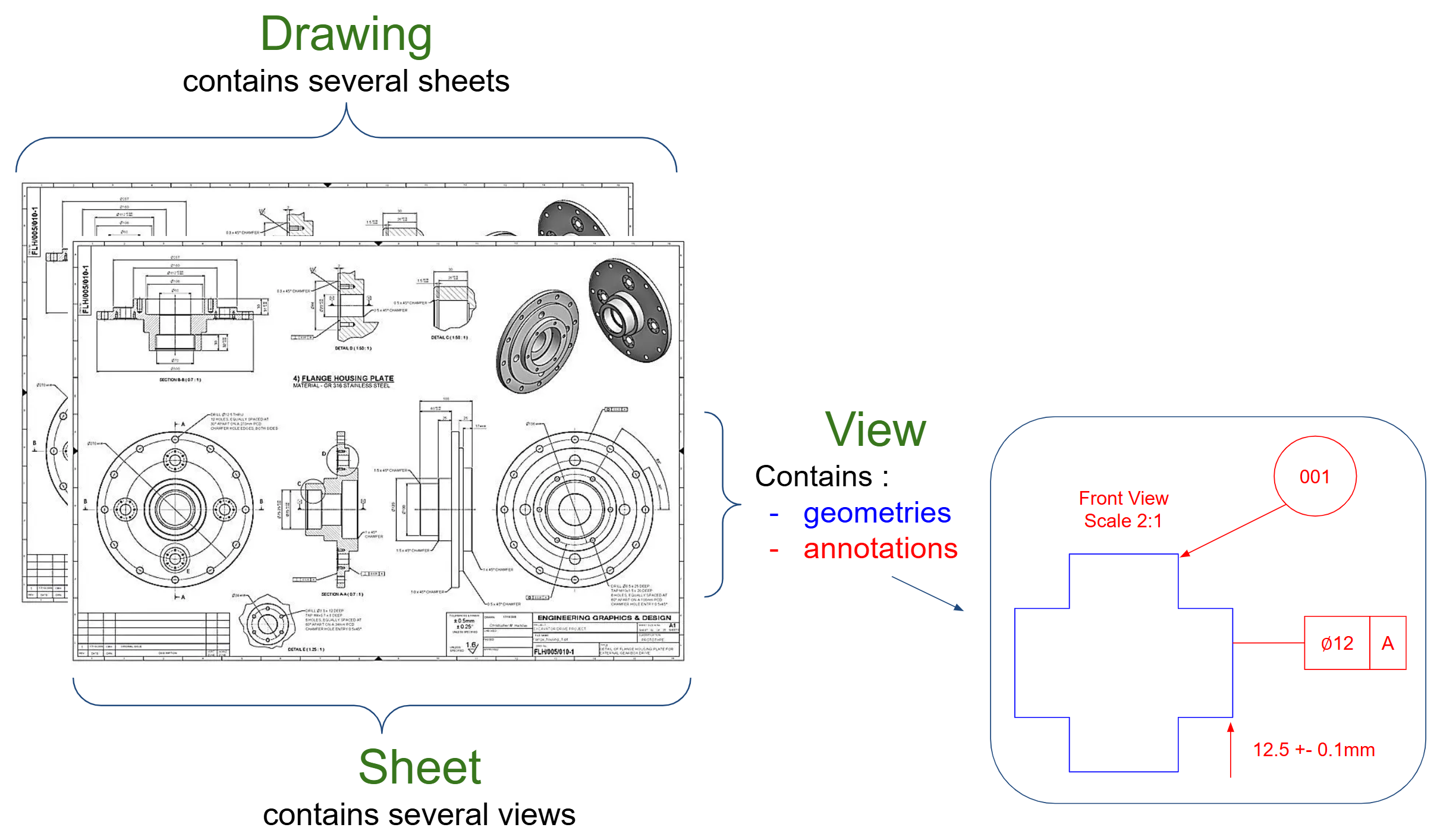
Figure 1: Hierarchical structure of dessia_drawing main objects.#
Hierarchical Structure#
The relationship between these classes follows a clear hierarchy:
Drawing
├── Sheet 1
│   ├── View 1 (e.g., "Front view")
│   │   ├── Geometries
│   │   │   ├── Edge
│   │   │   ├── Arc
│   │   │   └── Circle
│   │   └── Annotations
│   │       ├── Dimension
│   │       ├── Text
│   │       └── GeometricalTolerance
│   ├── View 2 (e.g., "COUPE A-A")
│   │   ├── Geometries
│   │   └── Annotations
│   └── View 3 (e.g., "DETAIL B")
│       ├── Geometries
│       └── Annotations
├── Sheet 2
│   └── ...
└── Sheet N
In addition to understanding the structure above, reading the dessia_drawing documentation
is useful for understanding:
The different kinds of geometric or annotation entities (lines, arcs, circles, dimensions, tolerances, text, etc.) — see the User Guide / Entity Types Guide section in the
dessia_drawingdocumentationThe different ways to collect entities using collectors (by text, type, position, extremes, etc.) — see the User Guide / Collecting Module section in the
dessia_drawingdocumentation
Why Drawing Tools?#
All drawing data is contained in the structured View/Sheet/Drawing classes of dessia_drawing.
Theoretically, every drawing analysis rule can be implemented using only these objects.
However, in most cases, doing so is long and tedious because of the “raw” nature of the data.
Here are two examples of the complexity involved:
View type detection: Determining if a view is a front view, section view, or background view requires considering the view size, parsing its titles, understanding the language, and searching for specific keywords.
Table detection: Detecting tables from a collection of disconnected lines requires implementing custom logic to check if lines regroup into cells, then into a table structure, and eventually extract content from each cell.
Drawing Tools absorbs this complexity by pre-implementing the tedious work and providing tools to access and check various features with simple, intuitive code.
Its goal is to accelerate the development of drawing analysis rules by providing higher-level abstractions. Future development aims to support more advanced analysis through graph-based representations of drawings and dimensions (see Graph-Based Analysis).
First Steps#
Drawing Tools provides “Featured” wrapper classes that enrich dessia_drawing objects
with additional capabilities. Here’s how to get started:
from dessia_drawing.core import Drawing
from drawing_tools.config.default_language_configs import DEFAULT_ENGLISH_CONFIG, DEFAULT_FRENCH_CONFIG
from drawing_tools.featured_drawing import FeaturedDrawing

# Load a drawing from JSON using dessia_drawing
drawing = Drawing.from_json("path/to/your/drawing.json")

# Wrap with FeaturedDrawing to add semantic features
featured_drawing = FeaturedDrawing(
    drawing,
    language_configs=[DEFAULT_FRENCH_CONFIG, DEFAULT_ENGLISH_CONFIG]
)

# Access enriched sheets and views
for sheet in featured_drawing.sheets:
    print(f"Sheet: {sheet.format}")
    for view in sheet.views:
        if view.title:
            print(f"  {view.name} - Type: {view.type}")
The wrapper classes automatically parse view titles and detect view types, making it easy to analyze drawings without writing complex parsing logic.
To visualize the drawing with enrichment overlays, use any of the @plot_data_view methods.
For example, to show each view with its index label:
featured_drawing.plot_data_view_indexes().plot()
Other methods include plot_data_balloons(), plot_data_tables(),
plot_data_section_lines(), plot_data_sets(), and more. See
Display & Report Methods for the complete list with interactive examples.
For detailed information on each wrapper class, see Featured Classes Guide.
What You Can Do#
With a FeaturedDrawing, you can:
Filter views by type - Get all section views, detail views, or front views in one call
Parse view titles - Extract identifiers (A, B, C…), scales (1:2), and repetition info automatically
Detect tables - Find tables in the drawing and extract cell content
Verify engineering rules - Check naming conventions, alphabetical ordering, format compliance… using a combination of the features above
from drawing_tools.config.view_types_config import ViewType

# Get all section and detail views
views = featured_drawing.views_of_types([ViewType.SECTION_VIEW, ViewType.DETAIL_VIEW])

for view in views:
    # Automatic title parsing
    print(f"{view.name}")
    print(f"  Type: {view.type}")
    print(f"  Identifier: {view.title.identifiers_by_language['french'].identifier}")
    print(f"  Scale: {view.title.scale()}")
See Engineering Rules Examples for complete examples of engineering rules verification.
Claude Code skills#
The package ships Agent Skills that teach AI assistants (Claude Code) its API and check methodology. Team install goes through the plugin marketplace:
/plugin marketplace add https://gitlab.com/dessia/sdk/claude-code-marketplace.git
/plugin install drawing-tools@dessia-tools
pip users can install the packaged skills directly:
python -m drawing_tools.install_skills
Details: src/drawing_tools/claude_skills/INSTALLING_SKILLS.md.
Next Steps#
Featured Classes Guide - Learn about FeaturedDrawing, FeaturedSheet, and FeaturedView
Language Configuration Guide - Configure multi-language support
ViewTitle Guide - Deep dive into view title parsing
Engineering Rules Examples - See practical examples of engineering rules verification